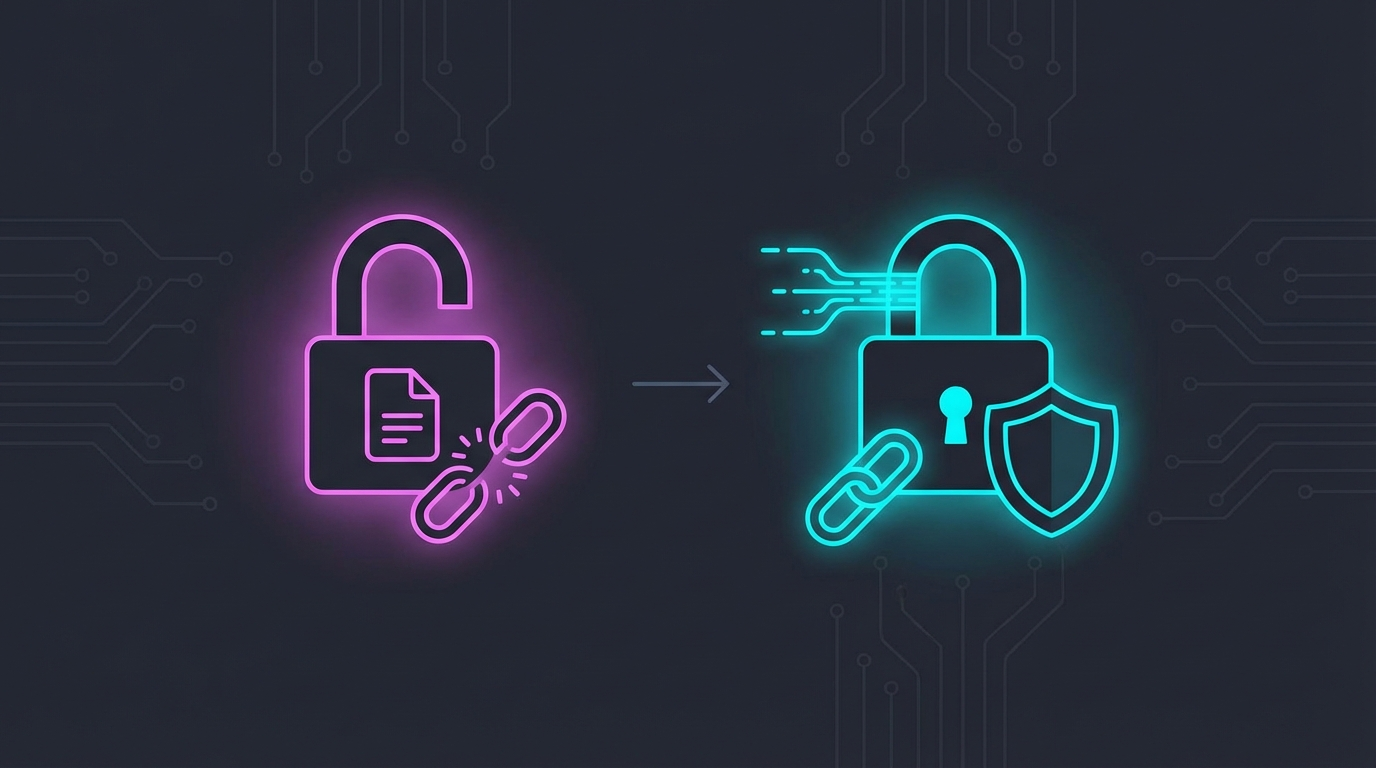
How many of your API keys are sitting in ~/.zshrc right now?
I’ll admit it—my first instinct when setting up a new tool is always export API_KEY=sk-xxx. It’s quick, it works, and every tutorial does it this way. But it’s also the digital equivalent of leaving your house key under the doormat.
WHY: The Problem with Shell Exports
When you add export GEMINI_API_KEY=xxx to your shell config, that key becomes visible to:
- Every process spawned from your terminal
- Shell history files (which often get synced or backed up)
- Dotfiles repositories (if you version control your configs)
- Anyone with access to your machine—even temporarily
The exposure surface is enormous. You’re not just giving the key to the one CLI tool that needs it. You’re broadcasting it to your entire shell environment, permanently.
I was setting up OpenClaw automation when this clicked. I’d typed export OPENCLAW_GATEWAY_TOKEN= and immediately thought: “Wait, this feels wrong.”
My dotfiles are on GitHub. My shell history syncs across machines. Every process I run can read environment variables. Storing secrets this way is convenient, but it’s lazy security.
HOW: The Keychain Wrapper Pattern
macOS has a built-in secrets manager that most developers ignore: Keychain. It’s encrypted, it’s protected by your login password, and it has a CLI interface via the security command.
The pattern is simple: instead of exporting keys globally, write a wrapper script that fetches secrets from Keychain only when the command runs.
First, store your key in Keychain:
# Add a secret to Keychain
security add-generic-password \
  -a "$USER" \
  -s "gemini-api-key" \
  -w "your-actual-api-key-here"
Then, create a wrapper script that fetches and exports the key on-demand:
#!/bin/bash
# ~/bin/openclaw - wrapper that fetches from Keychain

fetch_key() {
    local keychain_name="$1"
    security find-generic-password -a "$USER" -s "$keychain_name" -w 2>/dev/null || {
        echo "Error: $keychain_name not found in Keychain" >&2
        return 1
    }
}

# Fetch secrets only for this execution
export GEMINI_API_KEY=$(fetch_key "gemini-api-key") || exit 1
export OPENCLAW_GATEWAY_TOKEN=$(fetch_key "openclaw-gateway-token") || exit 1

# Run the actual command with all arguments passed through
exec /usr/local/bin/openclaw "$@"
Make it executable and add ~/bin to your PATH:
chmod +x ~/bin/openclaw
export PATH="$HOME/bin:$PATH"  # Add to .zshrc once
Now when you run openclaw, the wrapper:
- Fetches secrets from Keychain
- Exports them only for this process
- Executes the real command
- Secrets disappear when the process ends
WHAT: The Security Difference
| Approach | Key Exposure | Risk Level |
|---|---|---|
~/.zshrc export | Every shell, every process, forever | High |
| Wrapper script | Only during command execution | Low |
Environment file (.env) | Until you source it again | Medium |
The wrapper approach follows the principle of least privilege. Your API key exists in memory only for the duration of the command, not for your entire session.
Handling Multiple Tools
If you have several CLI tools needing secrets, create a shared helper:
# ~/.local/lib/keychain-helper.sh
fetch_keychain_secret() {
    security find-generic-password -a "$USER" -s "$1" -w 2>/dev/null
}
Then each wrapper can source it:
#!/bin/bash
source ~/.local/lib/keychain-helper.sh
export MY_API_KEY=$(fetch_keychain_secret "my-api-key") || exit 1
exec /path/to/tool "$@"
First-Time Setup
When setting up on a new machine, you’ll need to add secrets to Keychain once:
# Interactive prompt for the secret (doesn't show in history)
read -s -p "Enter Gemini API key: " key
security add-generic-password -a "$USER" -s "gemini-api-key" -w "$key"
This is slightly more work than pasting into .zshrc, but it’s work you do once per machine, and your secrets stay encrypted at rest.
Debugging
If something isn’t working, verify the secret exists:
# List all generic passwords for your user
security dump-keychain | grep -A 5 "gemini-api-key"

# Retrieve and verify (careful—this prints the key!)
security find-generic-password -a "$USER" -s "gemini-api-key" -w
The Takeaway
Every tutorial shows export API_KEY=xxx because it’s easy to explain. But easy isn’t secure. The extra ten minutes to set up Keychain wrappers pays off every time you:
- Push dotfiles without auditing for secrets
- Share your screen during a demo
- Let someone borrow your terminal
- Wonder if that random npm package is reading your environment
Your API keys are access tokens to paid services and sensitive data. Treat them like passwords, not configuration.
The pattern isn’t macOS-specific either. Linux has secret-tool (via libsecret), and there are cross-platform options like pass or 1Password CLI. The principle stays the same: fetch secrets on-demand, don’t broadcast them to your shell.
Stop leaving keys under the doormat.